Set up Outlook / Hotmail forwarding
Create an Outlook.com rule that forwards marketplace sale emails to Sold Elsewhere.
Works for Outlook.com, Hotmail.com, Live.com and MSN addresses. In the extension, open Setup and choose Outlook / Hotmail under “Your email” to see these steps next to your address.
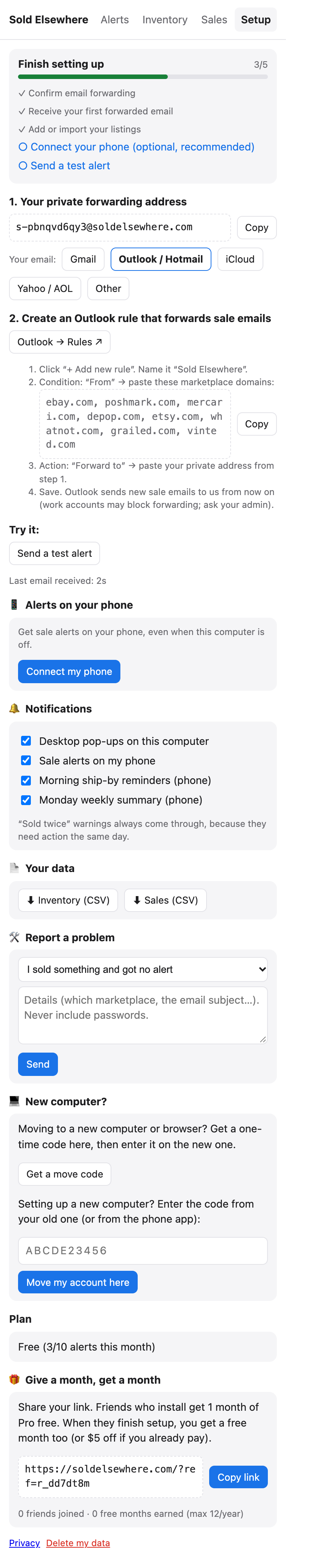
Steps
- Copy your private address from Setup → 1.
- Click Outlook → Rules ↗ (or in Outlook: ⚙ Settings → Mail → Rules).
- Click + Add new rule and name it
Sold Elsewhere. - Add a condition: choose From, then paste the marketplace domains (the extension has a Copy button):
ebay.com, poshmark.com, mercari.com, depop.com, etsy.com, whatnot.com, grailed.com, vinted.com - Add an action: choose Forward to and paste your private address.
- Click Save.
Outlook doesn’t send a confirmation code, so you’re done. Click Send a test alert in the extension to check notifications.
Notes
- Outlook forwards all emails from those marketplaces (not only sales). That’s fine: we ignore anything that isn’t a sale, and from sales we keep only the marketplace, title, price and ship-by date.
- Work or school accounts (Microsoft 365) often block forwarding to outside addresses. If the rule won’t save, ask your admin, or use a personal email for your marketplace accounts.
- Rules only apply to new mail.
Still stuck? Email hello@soldelsewhere.com. A real person replies within 2 business days, in English or Spanish.