Get alerts on your iPhone or iPad
Add the Sold Elsewhere app to your Home Screen and turn on notifications, so sales reach your lock screen even when your computer is off.
Your phone gets the same alerts as the extension: what sold, the bin, and End links. It works on iOS / iPadOS 16.4 or newer.
1. Show the pairing code on your computer
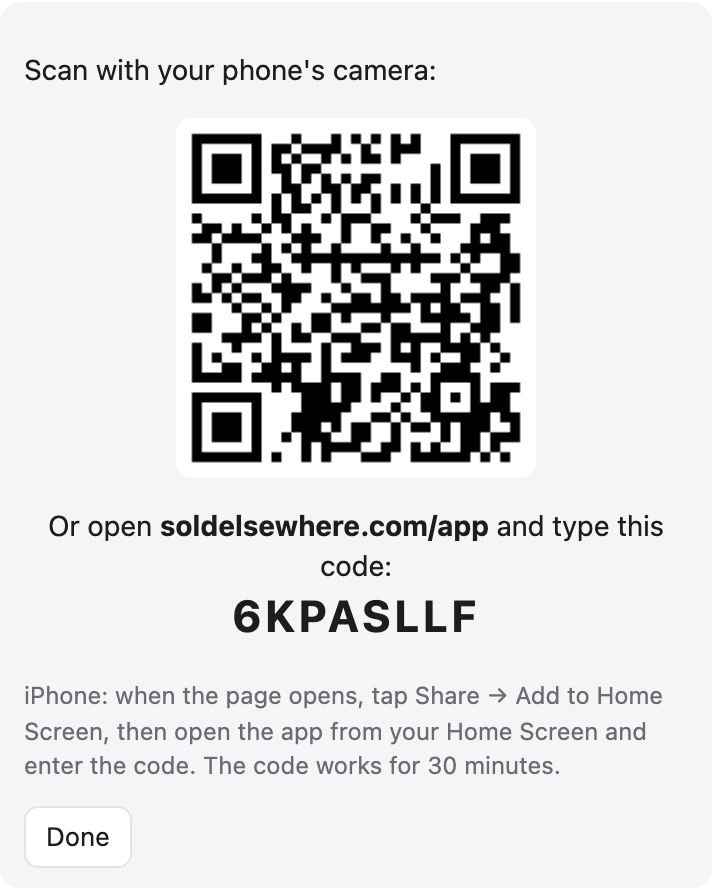
In the extension: Setup → 📱 Alerts on your phone → Connect my phone. A QR code and an 8-character code appear. The code works for 30 minutes.
2. Open the app on your iPhone
Point the iPhone Camera at the QR code and tap the link, or open Safari and go to soldelsewhere.com/app.
3. Add it to your Home Screen (required on iPhone)
Apple only allows notifications for web apps on the Home Screen.
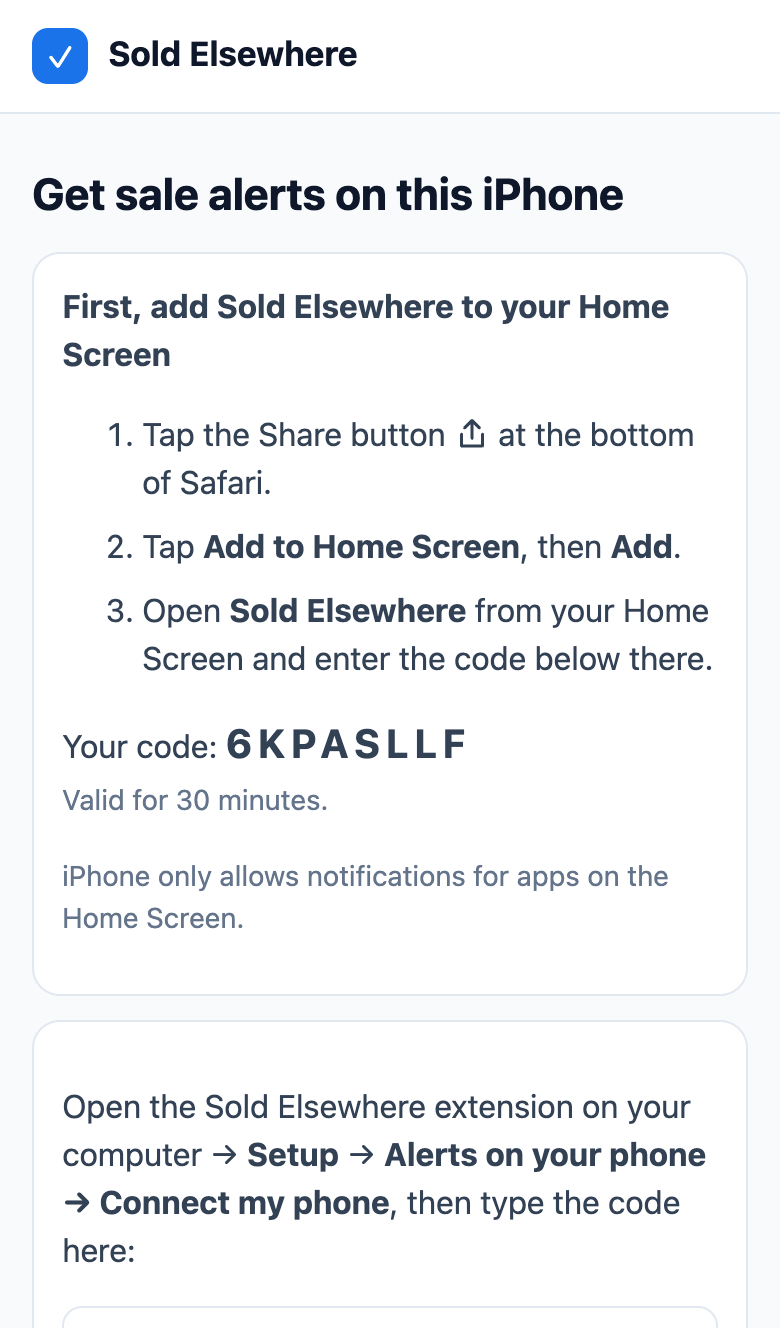
- In Safari, tap the Share button (square with an arrow).
- Scroll down and tap Add to Home Screen, then Add.
- Close Safari and open Sold Elsewhere from your Home Screen.
4. Enter the code and turn on alerts
- Type the 8-character code and tap Connect.
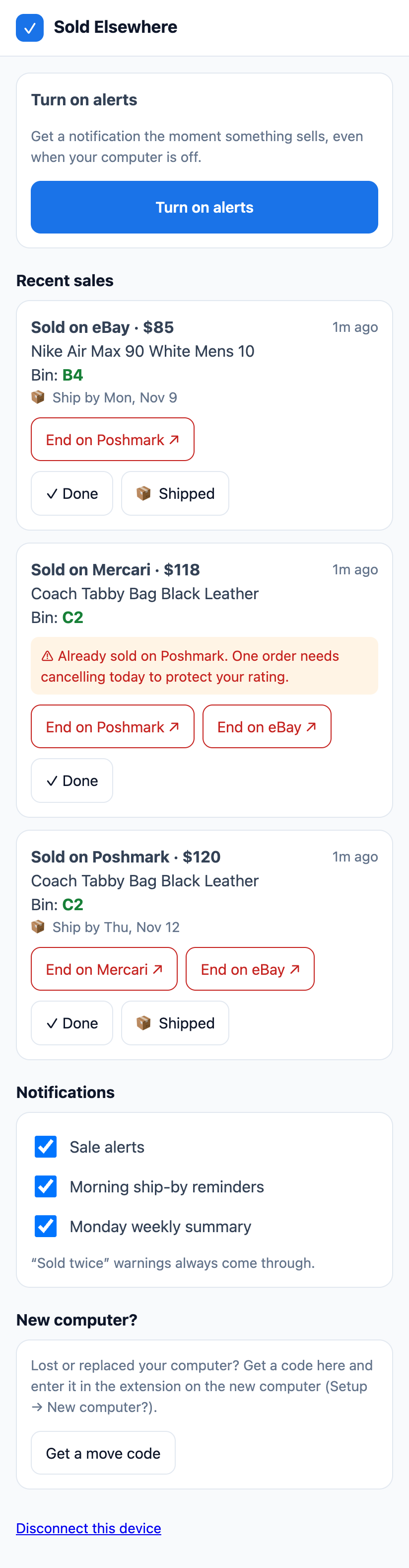
- Tap Turn on alerts, then Allow when iOS asks.
- A “Sold Elsewhere is connected ✅” notification arrives. You’re done.
Tips
- Focus modes can hide notifications. Settings → Focus → choose a mode → Apps → add Sold Elsewhere.
- Lock screen previews: Settings → Notifications → Sold Elsewhere → Show Previews → Always.
- Tap a notification to open the app. Each sale has End on… buttons, Done and 📦 Shipped.
- Using an iPad too? Repeat these steps. You can connect up to 10 devices.
Problems? See Notifications aren’t showing.
Still stuck? Email hello@soldelsewhere.com. A real person replies within 2 business days, in English or Spanish.